VCF 9 Home Lab | Embedded vIDM (viDB) --- AD Integration, Users, Groups & NSX SSO

VCF 9 Home Lab | Embedded vIDM (viDB) — AD Integration, Users, Groups & NSX SSO

📅 May 2026  |  🏷️ VCF 9 Home Lab Series  |  ✍️ Farrukh Hanif  |  LinkedIn

VCF 9 Home Lab | Embedded vIDM (viDB) — AD Integration, Users, Groups & NSX SSO

In this post I walk through the full configuration of embedded VMware Identity Manager (viDB) in VMware Cloud Foundation 9, integrating Active Directory over LDAP, creating VCF-specific users and groups via PowerShell, assigning roles across SDDC Manager and NSX, and troubleshooting the NSX SSO registration — including a real-world API authentication issue specific to VCF 9's microservices architecture.

Lab Environment

ComponentDetail
PlatformVMware Cloud Foundation 9
SDDC Manageredi-vcf01.edi.vcflab.local (10.11.10.14)
vCenteredi-m01-vc01.edi.vcflab.local
Domain ControllerWindows Server 2022 — vcflab.local (10.11.10.4)
AD Domainvcflab.local
SwitchingArista DCS-7050TX-64-R (ASN 65000)

Overview — What is Embedded vIDM (viDB)?

In VCF 9, VMware Identity Manager is embedded directly into the SDDC Manager appliance as a lightweight identity broker — referred to as viDB (vIDM Database). Unlike the full standalone Workspace ONE Access deployment, viDB is purpose-built for VCF's internal SSO and role-based access control needs.

Once configured, viDB acts as the identity federation layer across SDDC Manager, NSX Manager, and vCenter — meaning a single Active Directory login grants appropriately scoped access to all three components based on group membership.

The configuration is done via Operations Fleet Management in the SDDC Manager UI, not the old standalone vIDM interface.


Step 1 — Configure vCenter Identity Source (AD over LDAP)

Before configuring viDB, vCenter needs to know about the Active Directory domain so that SSO can resolve AD users and groups.

Navigate to: vCenter → Administration → Single Sign On → Configuration → Identity Sources → Add

Select Active Directory over LDAP and fill in the following:

FieldValue
Identity Source TypeActive Directory over LDAP
Identity source namevcflab.local
Base DN for usersCN=Users,DC=vcflab,DC=local
Base DN for groupsCN=Users,DC=vcflab,DC=local
Domain namevcflab.local
Domain aliasvcflab
Usernameadministrator@vcflab.local
Primary server URLldap://10.11.10.4:389
Secondary server URL(leave blank)
Note: Use plain ldap:// on port 389 for lab use. For LDAPS (port 636) you would need to upload the ADCS CA certificate in the Certificates field. Keep it simple for the initial deployment.

Click Add. No errors should be returned if the DC is reachable on VLAN 1110 and port 389 is not blocked.


Step 2 — Create AD Users and Groups via PowerShell

Before configuring viDB, the required OUs, groups, and service accounts need to exist in Active Directory. Run the following on your Windows Server 2022 domain controller:

# Create OUs
New-ADOrganizationalUnit -Name "VCF-Users"  -Path "DC=vcflab,DC=local"
New-ADOrganizationalUnit -Name "VCF-Groups" -Path "DC=vcflab,DC=local"

# Create AD Groups
New-ADGroup -Name "vcf-admins"     -GroupScope Global -Path "OU=VCF-Groups,DC=vcflab,DC=local" -Description "VCF SDDC Manager Admins"
New-ADGroup -Name "vcf-operators"  -GroupScope Global -Path "OU=VCF-Groups,DC=vcflab,DC=local" -Description "VCF SDDC Manager Operators"
New-ADGroup -Name "vcf-viewers"    -GroupScope Global -Path "OU=VCF-Groups,DC=vcflab,DC=local" -Description "VCF SDDC Manager Viewers"
New-ADGroup -Name "vcf-nsx-admins" -GroupScope Global -Path "OU=VCF-Groups,DC=vcflab,DC=local" -Description "NSX Admin Group"

# Set password
$password = ConvertTo-SecureString "VMware1!" -AsPlainText -Force

# Create Users
New-ADUser -Name "vcf-admin"       -SamAccountName "vcf-admin"       -UserPrincipalName "vcf-admin@vcflab.local"       -Path "OU=VCF-Users,DC=vcflab,DC=local" -AccountPassword $password -Enabled $true
New-ADUser -Name "vcf-operator"    -SamAccountName "vcf-operator"    -UserPrincipalName "vcf-operator@vcflab.local"    -Path "OU=VCF-Users,DC=vcflab,DC=local" -AccountPassword $password -Enabled $true
New-ADUser -Name "vcf-viewer"      -SamAccountName "vcf-viewer"      -UserPrincipalName "vcf-viewer@vcflab.local"      -Path "OU=VCF-Users,DC=vcflab,DC=local" -AccountPassword $password -Enabled $true
New-ADUser -Name "vcf-svc-nsxmgr"  -SamAccountName "vcf-svc-nsxmgr"  -UserPrincipalName "vcf-svc-nsxmgr@vcflab.local"  -Path "OU=VCF-Users,DC=vcflab,DC=local" -AccountPassword $password -Enabled $true
New-ADUser -Name "vcf-svc-sddc"    -SamAccountName "vcf-svc-sddc"    -UserPrincipalName "vcf-svc-sddc@vcflab.local"    -Path "OU=VCF-Users,DC=vcflab,DC=local" -AccountPassword $password -Enabled $true

# Assign group memberships
Add-ADGroupMember -Identity "vcf-admins"     -Members "Administrator","vcf-admin","vcf-svc-sddc"
Add-ADGroupMember -Identity "vcf-operators"  -Members "vcf-operator","vcf-svc-nsxmgr"
Add-ADGroupMember -Identity "vcf-viewers"    -Members "vcf-viewer"
Add-ADGroupMember -Identity "vcf-nsx-admins" -Members "vcf-admin","vcf-svc-nsxmgr"
UserGroupPurpose
vcf-adminvcf-admins, vcf-nsx-adminsSDDC + NSX admin
vcf-operatorvcf-operatorsSDDC operator
vcf-viewervcf-viewersRead-only access
vcf-svc-nsxmgrvcf-operators, vcf-nsx-adminsNSX service account
vcf-svc-sddcvcf-adminsSDDC service account
administratorvcf-adminsDomain admin + VCF admin

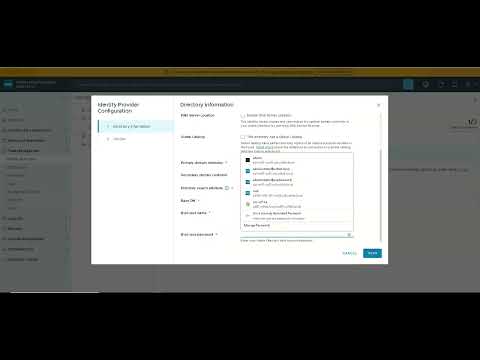
Step 3 — Configure Embedded vIDM Directory (viDB)

Navigate to: SDDC Manager → Operations Fleet Management → Identity and Access Management → Embedded vIDM

Directory Configuration

FieldValue
Directory display namevcflab.local
DNS Server LocationDisabled
Global CatalogUnchecked
Primary domain controller10.11.10.4
Secondary domain controller(leave blank)
Directory search attributesAMAccountName
Base DNDC=vcflab,DC=local
Bind user nameCN=vcf-svc-sddc,OU=VCF-Users,DC=vcflab,DC=local
Bind user passwordVMware1!
Important: The bind username must be in full Distinguished Name (DN) format. UPN format (vcf-svc-sddc@vcflab.local) will fail silently. Use the full CN=... DN as shown above.

Click Test Connection before saving. A successful test confirms the bind account can reach port 389 on the DC.

Attribute Mapping

vIDM AttributeAD Attribute
UsernamesAMAccountName
First namegivenName
Last namesn
Emailmail
Distinguished namedistinguishedName

Group and User Provisioning

The embedded viDB only allows a single group and user search base per directory — unlike the full Workspace ONE Access deployment. The solution is to point both at the parent OU so all groups and users are captured in one sync:

FieldValue
Group DNOU=VCF-Groups,DC=vcflab,DC=local
User DNOU=VCF-Users,DC=vcflab,DC=local
Sync nested group membersEnabled

After saving, trigger a manual sync. You should see 4 groups and 6 users imported successfully.


Step 4 — Assign Roles in SDDC Manager

Navigate to: SDDC Manager → Administration → Users and Groups

AD GroupSDDC Manager Role
vcf-adminsADMIN
vcf-operatorsOPERATOR
vcf-viewersVIEWER

Step 5 — Assign Roles in NSX Manager

Navigate to: NSX Manager → System → User Management → Role Assignments → Add

AD GroupNSX Role
vcf-nsx-adminsEnterprise Admin
vcf-operatorsNetwork Engineer

Step 6 — NSX SSO Registration (API Method)

After completing viDB configuration, NSX Manager reported "VCF SSO not set". The SDDC Manager GUI option to register NSX with vIDM was not present in this VCF 9 build, so the API method was required.

Troubleshooting: Finding the Correct API Credentials

VCF 9 has moved to a fully microservices-based architecture. The SDDC Manager API is fronted by nginx which routes to internal services on ports 7100–7900. The token endpoint is /v1/tokens routed to port 7100 (commonsvcs).

Error encountered: All token requests returned IDENTITY_UNAUTHORIZED_ENTITY when using admin, vcf, and administrator@vsphere.local — because VCF 9 uses admin@local as the local domain format, not admin or vsphere.local.

The correct local admin account format in VCF 9 is admin@local — set during the VCF bringup wizard.

Get API Token

TOKEN=$(curl -sk -X POST \
  https://localhost/v1/tokens \
  -H 'Content-Type: application/json' \
  -d '{"username":"admin@local","password":"<your-sddc-admin-password>"}' \
  | python3 -c "import sys,json; print(json.load(sys.stdin)['accessToken'])")
echo $TOKEN
Success: Once admin@local was used with the correct bringup password, the API returned a full JWT access token with ADMIN scope — confirming the authentication method for all subsequent VCF 9 API calls.

Get vIDM Configuration

curl -sk -X GET \
  https://localhost/v1/vidu/configuration \
  -H "Authorization: Bearer $TOKEN" \
  | python3 -m json.tool

Get NSX Manager Details

curl -sk -X GET \
  https://localhost/v1/nsx-managers \
  -H "Authorization: Bearer $TOKEN" \
  | python3 -m json.tool

Get SDDC Manager Certificate Thumbprint

echo | openssl s_client -connect edi-vcf01.edi.vcflab.local:443 2>/dev/null \
  | openssl x509 -noout -fingerprint -sha256 \
  | sed 's/://g' \
  | awk -F= '{print $2}'

Register vIDM on NSX Manager

NSX_IP="<your-nsx-manager-ip>"

curl -sk -X PUT \
  https://$NSX_IP/api/v1/node/aaa/providers/vidm \
  -u "admin:<nsx-admin-password>" \
  -H "Content-Type: application/json" \
  -d '{
    "vidm_enable": true,
    "host": "edi-vcf01.edi.vcflab.local",
    "thumbprint": "<THUMBPRINT>",
    "client_id": "<CLIENT_ID>",
    "client_secret": "<CLIENT_SECRET>",
    "node_host_name": "<nsx-manager-fqdn>"
  }' \
  | python3 -m json.tool

Key Learnings & Gotchas

  • VCF 9 local admin format is admin@local — not admin, not admin@vsphere.local. This is new in VCF 9 and caught me out across multiple token attempts.
  • Bind DN must be full Distinguished Name — viDB rejects UPN format for the bind user. Always use CN=user,OU=...,DC=...,DC=local.
  • Embedded viDB only supports one group/user OU — unlike standalone Workspace ONE Access. Point it at the parent OU to capture all child objects.
  • ADFS is not required for VCF lab identity — AD over LDAP covers all VCF identity needs for a lab or PoC. ADFS/OIDC is only needed for production federated identity scenarios.
  • VCF 9 is fully microservices-based — there is no monolithic sddc-manager.service. Services run as individual systemd units (commonsvcs, domainmanager, lcm, operationsmanager) fronted by nginx on port 443.
  • NSX SSO registration has no GUI button in this build — the API path via /api/v1/node/aaa/providers/vidm is the supported workaround.

What's Next

With identity configured end-to-end, the next steps in the VCF 9 home lab build are:

  • NSX T0 Gateway deployment and BGP peering with the Arista DCS-7050TX (currently in Idle(NoIf) state)
  • NSX T1 Gateway and segment configuration
  • Workload domain expansion
  • Automation via Terraform VMware provider against the VCF API

Farrukh Hanif — Senior Cloud Architect & NSX/VCF Engineer
linkedin.com/in/farrukhhanif
VCIX6-NV | VCP-VCF9 | VCAP-NV Design | CKS | CKA | AWS SA Pro

VCF 9 vIDM viDB NSX SDDC Manager Active Directory Home Lab VMware Broadcom Identity SSO PowerShell

VCF 9 Home Lab: Deploying a Dual-Site NFS Server on ESXi 9

Lab SeriesNetworkingStorageVCF 9

With the Arista DCS-7050TX-64-R fully configured for dual-site VCF 9 — VLANs, port-channels, SVIs, and BGP all in place — the next dependency before SDDC Manager deployment is shared storage. This post covers deploying a single Ubuntu NFS server on the R630-1 management host to serve both sites, and validating the end-to-end NFS path from ESXi.

Architecture overview

The design is deliberately simple: R630-1 runs ESXi 9 as its hypervisor, and a single Ubuntu 24.04 VM (nfs-server-01) runs on top of it with two vNICs — one on each site's NFS VLAN. Both Site 1 and Site 2 ESXi cluster hosts mount datastores from this single VM. The Arista switch handles inter-VLAN routing between the two NFS subnets via the Vlan1115 and Vlan1215 SVIs configured previously.


Figure 1 — R630-1 runs ESXi 9 as its hypervisor. The Ubuntu NFS VM (nfs-server-01) runs on top with two vNICs on VLAN 1115 (Site 1, 10.11.15.x) and VLAN 1215 (Site 2, 10.12.15.x). ESXi cluster hosts in each site mount NFS from the corresponding vNIC IP. The Arista switch provides inter-VLAN routing.
Why a VM, not bare metal Ubuntu? R630-1 is the management host — it also runs the NFS datastore for vCenter and SDDC Manager tooling. Keeping NFS in a VM lets you snapshot it, rebuild it, or migrate it without touching the host. It also avoids the circular dependency where NFS is needed to boot the host that serves NFS.

Network prerequisites

These were configured in the previous Arista post but are worth verifying before proceeding. The two NFS SVIs on the switch must be up before the Ubuntu VM can route to ESXi hosts.

VLANNameSubnetArista SVI IPMTUPurpose
1115NFS-S110.11.15.0/2410.11.15.19000Site 1 NFS traffic
1215NFS-S210.12.15.0/2410.12.15.19000Site 2 NFS traffic

Verify from the switch:

show interface Vlan1115
show interface Vlan1215

Both should show line protocol is up (connected) once R630-1 is cabled into Et25–28 and the NFS VM vNICs are active.

R630-1 VM deployment

VM specification

ParameterValueNotes
VM namenfs-server-01
OSUbuntu Server 24.04 LTSMinimal install
vCPU4NFS is I/O bound, not CPU bound
RAM16 GBAllows generous read-ahead caching
OS disk60 GB thinLocal RAID on R630-1 H330
Data disk1 TB+ thinBacking store for all exports
vNIC 1VLAN 1115 port groupSite 1 NFS — 10.11.15.10/24
vNIC 2VLAN 1215 port groupSite 2 NFS — 10.12.15.10/24
MTU matters: Set both vNICs to MTU 9000 to match the Arista SVI and VMkernel port MTU. Mismatched MTU causes silent fragmentation and NFS performance collapse under load. Validate end-to-end after deployment with a large-frame ping test.

Ubuntu NFS server installation

Step 1 — Install the NFS kernel server

sudo apt update && sudo apt install -y nfs-kernel-server

Step 2 — Configure jumbo frames on both vNICs

Edit /etc/netplan/00-installer-config.yaml (adjust interface names to match your VM — check with ip link):

network:
  version: 2
  ethernets:
    ens192:
      addresses: [10.11.15.10/24]
      routes:
        - to: 10.11.0.0/16
          via: 10.11.15.1
      mtu: 9000
    ens224:
      addresses: [10.12.15.10/24]
      routes:
        - to: 10.12.0.0/16
          via: 10.12.15.1
      mtu: 9000

Apply the configuration:

sudo netplan apply
ip link show ens192 | grep mtu
ip link show ens224 | grep mtu

Both interfaces should show mtu 9000.

Step 3 — Create export directories

sudo mkdir -p /exports/vcf-s1-shared
sudo mkdir -p /exports/vcf-s2-shared
sudo mkdir -p /exports/vcf-backups
sudo mkdir -p /exports/vcf-images
sudo chmod 777 /exports/vcf-s1-shared /exports/vcf-s2-shared
sudo chmod 777 /exports/vcf-backups
sudo chmod 755 /exports/vcf-images
Export pathAccessible fromPurposeMode
/exports/vcf-s1-shared10.11.15.0/24Site 1 VM datastore, shared VMDKsrw
/exports/vcf-s2-shared10.12.15.0/24Site 2 VM datastore, shared VMDKsrw
/exports/vcf-backupsBoth subnetsSDDC Manager, NSX, vCenter backupsrw
/exports/vcf-imagesBoth subnetsESXi ISOs, VCF bundle stagingro

Step 4 — Configure /etc/exports

sudo tee /etc/exports <<'EOF'
/exports/vcf-s1-shared  10.11.15.0/24(rw,sync,no_subtree_check,no_root_squash,anonuid=0,anongid=0)
/exports/vcf-s2-shared  10.12.15.0/24(rw,sync,no_subtree_check,no_root_squash,anonuid=0,anongid=0)
/exports/vcf-backups    10.11.15.0/24(rw,sync,no_subtree_check,no_root_squash) 10.12.15.0/24(rw,sync,no_subtree_check,no_root_squash)
/exports/vcf-images     10.11.15.0/24(ro,sync,no_subtree_check) 10.12.15.0/24(ro,sync,no_subtree_check)
EOF
no_root_squash is required for VCF: SDDC Manager and vCenter need root-level NFS access during deployment and backup operations. Without this option, file operations will fail with permission errors during the management domain build.

Step 5 — Apply exports and enable the service

sudo exportfs -arv
sudo systemctl enable --now nfs-kernel-server
sudo systemctl status nfs-kernel-server

Expected output from exportfs -arv:

exporting 10.11.15.0/24:/exports/vcf-s1-shared
exporting 10.12.15.0/24:/exports/vcf-s2-shared
exporting 10.11.15.0/24:/exports/vcf-backups
exporting 10.12.15.0/24:/exports/vcf-backups
exporting 10.11.15.0/24:/exports/vcf-images
exporting 10.12.15.0/24:/exports/vcf-images

Step 6 — Firewall

Ubuntu 24.04 ships with ufw inactive by default. If you have enabled it:

sudo ufw allow from 10.11.15.0/24 to any port nfs
sudo ufw allow from 10.12.15.0/24 to any port nfs
sudo ufw reload

NFS version — why NFSv3 for VMware

Use NFSv3, not NFSv4. vSphere supports NFSv4.1 but NFSv3 is the standard choice for VCF lab environments for several reasons: no stateful locking complexity, simpler troubleshooting, full support for all VCF datastore operations, and no Kerberos dependency. Unless you specifically need NFSv4.1 features (pNFS, delegations), stick with v3.

Validation — end-to-end MTU test

Before mounting NFS from ESXi, validate that jumbo frames traverse the full path without fragmentation. Run from an ESXi host on the NFS VMkernel:

# From ESXi host SSH — VMkernel on VLAN 1115
vmkping -I vmk2 -d -s 8972 10.11.15.10

The -d flag sets the DF (don't fragment) bit. The payload size 8972 bytes + 28 bytes IP/ICMP header = 9000 bytes total. A successful result confirms end-to-end MTU 9000 with no fragmentation across: ESXi VMkernel → vSwitch → Arista trunk → SVI → NFS VM vNIC.

If vmkping fails with 8972 but passes with a smaller payload — check MTU on the VMkernel port group (must be 9000), the vSwitch uplink (must be 9000), and the Arista port-channel MTU (9214 on this switch). The NFS VM vNIC MTU (9000 set above) is the ceiling for NFS traffic.

Mounting NFS from ESXi

Once validated, add the NFS datastore from vCenter — Datastores → New Datastore → NFS → NFSv3:

FieldSite 1 valueSite 2 value
NFS server10.11.15.1010.12.15.10
NFS share/exports/vcf-s1-shared/exports/vcf-s2-shared
Datastore namevcf-s1-nfs-sharedvcf-s2-nfs-shared
Access modeRead/WriteRead/Write

Or via ESXCLI if vCenter is not yet deployed:

# Site 1 host
esxcli storage nfs add -H 10.11.15.10 -s /exports/vcf-s1-shared -v vcf-s1-nfs-shared

# Site 2 host
esxcli storage nfs add -H 10.12.15.10 -s /exports/vcf-s2-shared -v vcf-s2-nfs-shared

Verification commands — NFS server side

# Check what is currently exported and mounted
sudo exportfs -v
sudo showmount -e localhost

# Check active NFS client connections
sudo ss -tnp | grep :2049

# Check NFS server statistics
nfsstat -s

What this enables for VCF 9

With NFS validated, SDDC Manager can now be pointed at the NFS datastores for:

  • SDDC Manager backup repository (/exports/vcf-backups)
  • vCenter appliance deployment staging
  • NSX Manager configuration backups
  • ESXi ISO and VCF bundle staging (/exports/vcf-images)
  • Shared VM storage for management workloads

Next post

With switch config and NFS in place, the next post covers VCF 9 management domain deployment — running SDDC Manager, validating the host commission checklist, and working through the first real deployment error (there's always one).

Lab hardware reference: R630-1 — Dell PowerEdge R630, 368 GB RAM, dual Xeon, H330 RAID controller. Running ESXi 9 as the hypervisor. The Ubuntu NFS server (nfs-server-01) is a VM on top of ESXi — not a bare-metal install. Cabled into Arista Et25–Et28 (trunk, VLAN 1111 native, all VCF VLANs allowed, MTU 9000).

Zero Trust Isn't a Product.

It's an Operating Model.

And in Broadcom VCF 9.0, it finally has a real platform.

A Technical Blog | VMware Cloud Foundation 9.0 | Zero Trust Architecture

#ZeroTrust #VCF9 #CyberSecurity #CloudArchitect #Microsegmentation #NSX #DistributedFirewall


The Problem With 'Perimeter Security'

For decades, enterprise security was built on a single core assumption: if you're inside the network, you're trusted. We built firewalls at the edge, drew a hard line between 'external' and 'internal', and assumed everything behind that line was safe.

That assumption is now a liability.

Think about what 'inside the network' actually means today:

  • Remote workers on VPNs spanning continents

  • Hybrid cloud workloads split across on-prem and AWS/Azure

  • Containerised microservices with ephemeral identities

  • SaaS integrations that bypass your network entirely

  • Third-party contractors with broad internal access

The perimeter is everywhere. And a perimeter that's everywhere is effectively nowhere.

The castle-and-moat model was designed for a world where your data lived in one building. That world no longer exists.

Figure 1

Figure 1: The traditional perimeter model — once inside, traffic roams freely. A single breach grants lateral movement across the entire flat network.

In the diagram above, notice what happens the moment an attacker gets past the perimeter. There are no internal barriers. East-west traffic flows without inspection. One compromised VM becomes a launchpad for the entire environment.

Flat networks aren't just inefficient. They're a liability waiting to be exploited.

What Zero Trust Actually Means

Zero Trust is not a product you can buy. It is not a firewall SKU, a vendor badge, or a compliance checkbox. It is an architectural philosophy — and it rests on three principles:

  • Never trust, always verify — every request must be authenticated and authorised regardless of source

  • Assume breach — design systems as if attackers are already inside

  • Least privilege access — every identity, workload, and service gets the minimum access required, nothing more

The problem is that the industry has spent years selling 'Zero Trust-inspired' solutions — products that approximate these principles through overlapping tools, manual configuration, and bolt-on controls. The result is a security posture that looks good on paper and falls apart under pressure.

You cannot retrofit Zero Trust onto a flat network any more than you can retrofit fire exits onto a building that was never designed for them.

True Zero Trust requires the platform itself to be the enforcement layer. Security must be engineered into the architecture — not added on top of it. This is exactly what VCF 9.0 delivers.

VCF 9.0: Zero Trust as a Platform

VMware Cloud Foundation 9.0 is not a Zero Trust-inspired private cloud. It is a Zero Trust-native private cloud. The distinction matters enormously.

'Inspired by' means the principles influenced the design but compromises were made. 'Native' means the architecture is the security model — they are inseparable. In VCF 9.0, two core capabilities deliver this:

Figure 2

Figure 2: VCF 9.0 Zero Trust-Native Architecture — NSX VPCs providing macro isolation, with Distributed Firewall enforcement at every VM vNIC across all tenants.

NSX VPCs: Macro Isolation at the Tenant Boundary

NSX Virtual Private Clouds (VPCs) provide hard tenant-level segmentation within the VCF platform. Think of them as dedicated, isolated network constructs — not just logical groupings, but enforced boundaries that prevent any lateral movement between tenants.

Each VPC is an independent network domain with its own:

  • Routing domain — traffic cannot cross VPC boundaries without explicit policy

  • Address space — overlapping IP ranges are fully supported across tenants

  • Security policy context — each VPC operates under its own policy namespace

  • Network services — DNS, DHCP, NAT, load balancing are all VPC-scoped

This is macro isolation. Whether you're segregating business units, application environments, or customer tenants in a multi-tenant deployment, NSX VPCs provide the hard boundaries that flat VLANs never could.

NSX VPCs aren't just an organisational tool. They are enforcement points. Cross-VPC traffic is blocked by default — not permitted by default.

The Distributed Firewall: Micro-Enforcement at Every vNIC

If NSX VPCs are the macro layer, the Distributed Firewall (DFW) is the micro layer — and it is where VCF 9.0's Zero Trust architecture becomes truly powerful.

Traditional firewalls sit at network boundaries. Traffic must flow to the firewall to be inspected. In a flat network, that means east-west traffic — VM to VM, service to service — largely bypasses inspection entirely.

The VCF Distributed Firewall works differently. It is implemented as a kernel module in every ESXi hypervisor. This means enforcement happens at the vNIC of every single virtual machine — before the packet ever touches the virtual switch, before it traverses the network, before it reaches its destination.

Figure 3

Figure 3: The Distributed Firewall enforces policy at the hypervisor kernel level, at each VM vNIC — east-west traffic is inspected before it ever hits the wire.

What makes this architecturally significant:

  • The firewall cannot be bypassed — it operates below the OS layer of the VM

  • Policy is stateful and identity-aware — not just IP and port rules

  • Enforcement is consistent regardless of physical location — VM migration preserves policy

  • Performance overhead is minimal — enforcement happens in the fast path of the hypervisor

  • Visibility is complete — every east-west flow is logged, inspected, and policy-matched

East-west traffic doesn't move freely in VCF 9.0. It is inspected, policy-driven, and controlled at every hop — at the vNIC, not the edge.

Macro + Micro: One Consistent Trust Model

The architectural genius of VCF 9.0's Zero Trust implementation is how these two layers work together to create a single, consistent trust model from the user to the application to the workload.

NSX VPCs handle the macro layer — defining hard boundaries between tenants, business units, and application domains. The Distributed Firewall handles the micro layer — enforcing least-privilege access between every workload within those boundaries.

Together, they deliver:

Macro Isolation. Micro Enforcement. One consistent trust model from user to app to workload.

Figure 4

Figure 4: Zero Trust capability comparison — traditional infrastructure vs VCF 9.0's native approach across every critical dimension.

The comparison above is stark. Traditional infrastructure relies on coarse VLAN segmentation, lacks east-west inspection, uses static IP-based policy rules that break on VM migration, and is built on implicit trust. VCF 9.0 replaces every one of these with a native, platform-level alternative.

Why 'Engineered In' Matters

There is a meaningful difference between security that is engineered into a platform and security that is layered on top of one. It is not just a marketing distinction — it has real operational consequences.

The 'Layered On' Problem

When you bolt Zero Trust controls onto existing infrastructure, you end up with:

  • Overlapping toolsets from multiple vendors, each with their own policy models

  • Change freezes every time you need to update segmentation rules

  • Policy drift as VMs migrate and static rules become stale

  • Inconsistent enforcement as some workloads fall through coverage gaps

  • Complex troubleshooting across tools that don't share context

This isn't a theoretical concern. It is the lived reality of most enterprise security teams today — stitching together NSGs, network ACLs, hardware firewalls, and micro-segmentation overlays, hoping the gaps don't show.

The 'Engineered In' Advantage

When Zero Trust is native to the platform, the calculus flips entirely:

  • The DFW is always-on — there is no 'gap' because enforcement is in the hypervisor

  • Policy follows the workload — vMotion and DRS migrations preserve security posture

  • A single policy model — one consistent framework across all workloads and tenants

  • Operational simplicity — security teams manage policy, not infrastructure complexity

  • Auditability by default — every flow is visible, logged, and policy-attributed

Security that moves with the workload isn't just operationally convenient. It's a fundamentally different risk posture. Policy drift becomes impossible when the policy is part of the platform.

Private Cloud Just Grew Up

For most of the last decade, private cloud was playing catch-up with public cloud on agility. Developers wanted AWS-speed provisioning. Platform teams struggled to deliver it. The conversation was almost entirely about speed-to-deployment.

VCF 9.0 flips that narrative. On the dimension that matters most in 2025 — security architecture — private cloud now leads.

Consider what Zero Trust looks like in AWS:

  • IAM policies — complex JSON, easy to misconfigure, hard to audit

  • Security Groups — stateful but IP-centric, no workload identity

  • Network ACLs — stateless, coarse, applied at subnet level

  • VPC peering — creates implicit trust between environments

  • GuardDuty — detection, not prevention; you still need to respond

You can absolutely implement Zero Trust controls in AWS. But you are stitching together multiple services, each with their own model, each requiring expertise, and each introducing potential for gaps. The platform does not enforce Zero Trust — you bolt it on.

In VCF 9.0, the platform is the security model. You do not stitch. You do not overlap. You do not hope the gaps don't show. The DFW is always on. NSX VPCs are always isolated. Trust is never assumed.

Zero Trust isn't coming to private cloud. In VCF 9.0, it's already the default.

Closing Thoughts

Zero Trust is not a destination — it is a continuous operating model. But you cannot operate a Zero Trust model if your platform was not designed for it.

VCF 9.0 is the first private cloud platform that takes this seriously at every layer. NSX VPCs provide the isolation boundaries that make macro segmentation real. The Distributed Firewall provides the microsegmentation enforcement that makes east-west control real. Together, they deliver something that no overlay solution or bolt-on tool can match: a consistent, platform-native trust model that does not drift, does not gap, and does not break when workloads move.

If you are still designing private cloud environments with implicit internal trust, you are not behind on a feature. You are behind on a decade of threat evolution.

The question is no longer whether Zero Trust belongs in your private cloud. It is whether your platform was built for it.

VCF 9.0 was built for it. This isn't Zero Trust-inspired private cloud. This is Zero Trust-native private cloud.


Cloud Architect | VMware VCF Practice

Tags: VCF 9.0 | Zero Trust | NSX | Microsegmentation | Private Cloud | Broadcom

VCF 9 Lab Network Pre-Requisites: Arista Switch Configuration, VLAN Design & Full Validation Covers

VCF 9 Lab Network Pre-Requisites — Farrukh Hanif

Introduction

This post is part of an ongoing series documenting the build-out of a physical VCF 9 home lab from scratch. Before a single VCF installer OVA is deployed, the physical network layer needs to be correct — VLANs present, MTUs consistent end-to-end, BGP uplinks reachable, and NFS accessible from the management domain. If any of these are wrong at day zero, VCF deployment will fail in ways that are difficult to diagnose after the fact.

This guide covers the complete network pre-requisite configuration applied to an Arista DCS-7050TX-64-R acting as the primary lab leaf switch, including the design decisions behind every choice, the full EOS configuration, and a thorough validation checklist. Everything here reflects a real deployment — including mistakes encountered along the way.

Note: This is not a theoretical design guide. Every command shown was run on real hardware. Where something failed during testing, it is documented here along with the fix.

Lab Hardware Overview

The physical lab consists of the following hardware. Understanding the role of each node informs every design decision that follows.

ComponentSpecificationRole in Lab
Arista DCS-7050TX-64-R48x 10GbE RJ45, 4x QSFP+, EOS 4.19.10MPrimary lab leaf switch — all VLANs, BGP, SVIs
Cisco Catalyst 3750E-PoE-2424x 1GbE PoE, IOS 15.2Core access switch — trunked to Arista Et48
Supermicro SYS-6029TP-HTR (×2)2U TwinPro², 4 nodes/chassis, dual Xeon Silver 4214R, 1TB RAM total8× VCF compute/management nodes (Site 1 = CHx1 A-D, Site 2 = CHx2 E-H)
Dell PowerEdge R630128GB DDR4, 4× 1GbE onboardManagement host: ESXi running Ubuntu 24.04 VM for NFS + Docker services
Intel NUC Skull Canyon2× NIC, Ubuntu DesktopAdmin jumpbox — SSH gateway, Vaultwarden, HashiCorp Vault
HPE 3PAR StoreServ 800012× 1.2TB SAS + 8× 480GB SAS SSDFuture vSAN drives — require sg_format 520→512 byte sector conversion
Design Note: The R630 is not a VCF management domain host. It runs ESXi purely to host an Ubuntu Server 24.04 VM which provides NFS storage and Docker-based services (Outline wiki, Gitea, Oxidized, draw.io, HashiCorp Vault). This avoids a circular dependency — the R630 ESXi does not consume the NFS it serves.

VLAN Design & IP Addressing

VCF 9 requires a minimum of five dedicated VLANs per management domain: ESXi Management, vMotion, vSAN, NSX Host TEP, and VM Management. NFS storage and OOB IPMI are additional VLANs added for this lab. A second site VLAN range is pre-provisioned using a completely separate numbering scheme to avoid any ambiguity when both sites are active simultaneously.

Design Decisions

  • Site 1 VLANs use the 111x range (1110–1115). Site 2 uses 121x (1210–1215). The leading digit difference makes it immediately obvious from any port config or trunk which site a VLAN belongs to.
  • OOB IPMI uses VLAN 100 (Site 1) and VLAN 200 (Site 2) — intentionally low, access-only, never trunked with data VLANs.
  • BGP T0 uplink VLANs (60, 70, 160, 170) use dedicated /30 subnets on access-mode ports connecting to NSX Edge uplink vNICs. No other traffic shares these VLANs.
  • Native VLAN on blade trunks is set to ESXi Management (1111 for Site 1, 1211 for Site 2) so untagged ESXi management frames are processed correctly.
  • Both site VLAN ranges are trunked on all blade port-channels from day one. To isolate a site, remove that site's VLANs from the allowed list — no port mode changes required.

VLAN Reference — Site 1

VLANName / PurposeSubnetGatewayMTUNotes
100OOB IPMI / iDRAC10.10.0.0/2410.10.0.11500Access only — Chassis 1+2 IPMI, R630 iDRAC
1110VM Management10.11.10.0/2410.11.10.11500VCF VM-Mgmt network
1111ESXi Management10.11.11.0/2410.11.11.11500SDDC Mgr, vCenter, NSX Mgr — Native VLAN on blade trunks
1112vMotion10.11.12.0/2410.11.12.19000Jumbo MTU — VDS vmkernel port must match
1113vSAN10.11.13.0/2410.11.13.19000Jumbo MTU — vSAN OSA architecture
1114NSX Host TEP10.11.14.0/2410.11.14.19000Geneve encapsulation — jumbo MTU mandatory
1115NFS Storage10.11.15.0/2410.11.15.19000NFS from R630 Ubuntu VM — static IP 10.11.15.10
60NSX T0 Uplink 110.0.60.0/3010.0.60.19216BGP eBGP: Arista .1 ↔ T0 .2 — ASN 65000 ↔ 65001
70NSX T0 Uplink 210.0.70.0/3010.0.70.19216BGP eBGP: Arista .1 ↔ T0 .2 — ASN 65000 ↔ 65001

VLAN Reference — Site 2

VLANName / PurposeSubnetGatewayMTUNotes
200OOB IPMI / iDRAC S210.20.0.0/2410.20.0.11500Access only — Chassis 2 IPMI
1210VM Management S210.12.10.0/2410.12.10.11500Site 2 VM-Mgmt
1211ESXi Management S210.12.11.0/2410.12.11.11500Native VLAN on CHx2 blade trunks
1212vMotion S210.12.12.0/2410.12.12.19000Jumbo MTU
1213vSAN S210.12.13.0/2410.12.13.19000Jumbo MTU — vSAN OSA
1214NSX Host TEP S210.12.14.0/2410.12.14.19000Geneve — jumbo MTU mandatory
1215NFS Storage S210.12.15.0/2410.12.15.19000Site 2 NFS
160NSX T0 Uplink 1 S210.0.160.0/3010.0.160.19216BGP eBGP: Arista .1 ↔ T0 .2 — ASN 65000 ↔ 65002
170NSX T0 Uplink 2 S210.0.170.0/3010.0.170.19216BGP eBGP: Arista .1 ↔ T0 .2 — ASN 65000 ↔ 65002

MTU Strategy

MTU misconfiguration is one of the most common causes of silent VCF failures. vSAN, vMotion, and NSX Geneve tunnels all require end-to-end jumbo frame support. A mismatch anywhere in the path causes fragmentation or silent drops that manifest as performance degradation or session instability rather than obvious errors.

Traffic TypeRequired MTUApplies To
ESXi / VM Mgmt / OOB1500VLANs 100, 200, 1110, 1111, 1210, 1211
vMotion9000 (inner payload)VLAN 1112 / 1212 — SVI MTU 9000
vSAN (OSA)9000 (inner payload)VLAN 1113 / 1213 — health check will warn on mismatch
NSX Host TEP (Geneve)9000 inner / 9216 physicalVLAN 1114 / 1214 — Geneve adds ~50 bytes overhead
NFS Storage9000VLAN 1115 / 1215 — jumbo recommended even on 1GbE
NSX T0 BGP Uplinks9216VLANs 60, 70, 160, 170 — SVIs and access ports
Blade Port-Channels (Po1–Po8)9216Physical MTU headroom for Geneve overhead
R630 Trunk Ports90001GbE links — practical ceiling for NFS and mgmt
Key Rule: Physical port MTU ≥ SVI MTU ≥ VMkernel port MTU. Blade port-channels = 9216. Jumbo SVIs = 9000 or 9216. VDS VMkernel ports for vMotion/vSAN/TEP = 9000. Never set VMkernel MTU higher than its SVI MTU.

Switch Port Allocation

PortsDeviceLAG / ModeMTUNotes
Et1–Et2CHx1-NodeA (Site 1)LACP → Po19216Trunk: 100,200,1110-1115,1210-1215 | Native: 1111
Et3–Et4CHx1-NodeB (Site 1)LACP → Po29216Trunk: 100,200,1110-1115,1210-1215 | Native: 1111
Et5–Et6CHx1-NodeC (Site 1)LACP → Po39216Trunk: 100,200,1110-1115,1210-1215 | Native: 1111
Et7–Et8CHx1-NodeD (Site 1)LACP → Po49216Trunk: 100,200,1110-1115,1210-1215 | Native: 1111
Et9–Et12CHx1 IPMI (Nodes A–D)Access1500Access VLAN 100 — OOB only
Et13–Et14CHx2-NodeE (Site 2)LACP → Po59216Trunk: 100,200,1110-1115,1210-1215 | Native: 1211
Et15–Et16CHx2-NodeF (Site 2)LACP → Po69216Trunk: 100,200,1110-1115,1210-1215 | Native: 1211
Et17–Et18CHx2-NodeG (Site 2)LACP → Po79216Trunk: 100,200,1110-1115,1210-1215 | Native: 1211
Et19–Et20CHx2-NodeH (Site 2)LACP → Po89216Trunk: 100,200,1110-1115,1210-1215 | Native: 1211
Et21–Et24CHx2 IPMI (Nodes E–H)Access1500Access VLAN 200 — OOB only
Et25–Et28R630-1 NIC1–4Trunk (no LAG)9000Trunk: all VLANs | Native: 1111 | 1GbE links
Et29R630-1 iDRACAccess1500Access VLAN 100
Et30–Et33R630-2 NIC1–4Trunk (no LAG)9000Trunk: all VLANs | Native: 1111 | 1GbE links
Et34R630-2 iDRACAccess1500Access VLAN 100
Et35NUC NIC1Trunk1500Admin trunk — all VLANs | Native: 1111
Et36NUC NIC2Access1500Access VLAN 1110 — VM-Mgmt
Et37NSX T0 S1 Uplink1Access9216Access VLAN 60 | BGP peer 10.0.60.2
Et38NSX T0 S1 Uplink2Access9216Access VLAN 70 | BGP peer 10.0.70.2
Et39NSX T0 S2 Uplink1Access9216Access VLAN 160 | BGP peer 10.0.160.2
Et40NSX T0 S2 Uplink2Access9216Access VLAN 170 | BGP peer 10.0.170.2
Et41–Et46SPAREShutdownAvailable for future expansion
Et47Internet UplinkRouted L31500192.168.31.2/24 — default route via 192.168.31.1
Et48Cisco 3750E TrunkTrunk9216All VLANs both sites | Native: 1111
Et49–Et52QSFP ReservedShutdown40G uplinks — reserved
Management1OOB ManagementDHCP1500192.168.31.x/24 from home AP — out-of-band only

EOS Configuration

1 Baseline — Hostname, Routing & Credentials

Global — Hostname / Routing / Credentials
hostname VCF-LEAF-SW01
!
spanning-tree mode mstp
!
no aaa root
username admin privilege 15 role network-admin secret 0 <REPLACE_PASSWORD>
!
ip routing
!
! Default route toward home router — internet access for workload VMs via BGP
ip route 0.0.0.0/0 192.168.31.1

2 VLAN Database

VLAN Database — Site 1 & Site 2
! ── Site 1 VLANs ──────────────────────────────────────────────
vlan 60
   name NSX-T0-Uplink1-S1
vlan 70
   name NSX-T0-Uplink2-S1
vlan 100
   name OOB-IPMI-S1
vlan 1110
   name VM-Mgmt-S1
vlan 1111
   name ESX-Mgmt-S1
vlan 1112
   name vMotion-S1
vlan 1113
   name vSAN-S1
vlan 1114
   name NSX-TEP-S1
vlan 1115
   name NFS-S1
! ── Site 2 VLANs ──────────────────────────────────────────────
vlan 160
   name NSX-T0-Uplink1-S2
vlan 170
   name NSX-T0-Uplink2-S2
vlan 200
   name OOB-IPMI-S2
vlan 1210
   name VM-Mgmt-S2
vlan 1211
   name ESX-Mgmt-S2
vlan 1212
   name vMotion-S2
vlan 1213
   name vSAN-S2
vlan 1214
   name NSX-TEP-S2
vlan 1215
   name NFS-S2

3 LACP Port-Channels

Each Supermicro blade node has two 10GbE NICs bonded as LACP port-channels (active/active) providing link redundancy and 20Gbps aggregate bandwidth. All port-channels trunk both site VLAN ranges from day one.

Port-Channel Configuration (LACP) — Chassis 1 & Chassis 2
! ── Chassis 1 — Nodes A/B/C/D (Site 1 native VLAN 1111) ──────
interface Port-Channel1
   description CHx1-NodeA-LACP
   switchport mode trunk
   switchport trunk allowed vlan 100,200,1110-1115,1210-1215
   switchport trunk native vlan 1111
   mtu 9216
   no shutdown
!
interface Port-Channel2
   description CHx1-NodeB-LACP
   switchport mode trunk
   switchport trunk allowed vlan 100,200,1110-1115,1210-1215
   switchport trunk native vlan 1111
   mtu 9216
   no shutdown
!
interface Port-Channel3
   description CHx1-NodeC-LACP
   switchport mode trunk
   switchport trunk allowed vlan 100,200,1110-1115,1210-1215
   switchport trunk native vlan 1111
   mtu 9216
   no shutdown
!
interface Port-Channel4
   description CHx1-NodeD-LACP
   switchport mode trunk
   switchport trunk allowed vlan 100,200,1110-1115,1210-1215
   switchport trunk native vlan 1111
   mtu 9216
   no shutdown
!
! ── Chassis 2 — Nodes E/F/G/H (Site 2 native VLAN 1211) ──────
interface Port-Channel5
   description CHx2-NodeE-LACP
   switchport mode trunk
   switchport trunk allowed vlan 100,200,1110-1115,1210-1215
   switchport trunk native vlan 1211
   mtu 9216
   no shutdown
!
! Po6/Po7/Po8 follow identical pattern with native vlan 1211
LACP Member Ports — Physical blade NICs (Node A example)
interface Ethernet1
   description CHx1-NodeA-NIC1-LAG1
   switchport mode trunk
   switchport trunk allowed vlan 100,200,1110-1115,1210-1215
   switchport trunk native vlan 1111
   mtu 9216
   channel-group 1 mode active
   spanning-tree portfast
   no shutdown
!
interface Ethernet2
   description CHx1-NodeA-NIC2-LAG1
   switchport mode trunk
   switchport trunk allowed vlan 100,200,1110-1115,1210-1215
   switchport trunk native vlan 1111
   mtu 9216
   channel-group 1 mode active
   spanning-tree portfast
   no shutdown
!
! Pattern repeats:
! Et3/Et4  -> channel-group 2  (Node B)
! Et5/Et6  -> channel-group 3  (Node C)
! Et7/Et8  -> channel-group 4  (Node D)
! Et13/14  -> channel-group 5  native 1211 (Node E)
! Et15/16  -> channel-group 6  native 1211 (Node F)
! Et17/18  -> channel-group 7  native 1211 (Node G)
! Et19/20  -> channel-group 8  native 1211 (Node H)

4 OOB IPMI / iDRAC Ports

IPMI / iDRAC Access Ports
! Chassis 1 IPMI — access VLAN 100 (Et9–Et12)
interface Ethernet9
   description CHx1-NodeA-IPMI
   switchport mode access
   switchport access vlan 100
   mtu 1500
   spanning-tree portfast
   no shutdown
! Et10/11/12 — NodeB/C/D IPMI — identical config, VLAN 100
!
! Chassis 2 IPMI — access VLAN 200 (Et21–Et24)
interface Ethernet21
   description CHx2-NodeE-IPMI
   switchport mode access
   switchport access vlan 200
   mtu 1500
   spanning-tree portfast
   no shutdown
! Et22/23/24 — NodeF/G/H IPMI — identical config, VLAN 200
!
! R630-1 iDRAC — access VLAN 100 (Et29)
interface Ethernet29
   description R630-1-iDRAC-OOB
   switchport mode access
   switchport access vlan 100
   mtu 1500
   spanning-tree portfast
   no shutdown

5 Dell R630 — Management / NFS Host

The R630 has 4× onboard 1GbE NICs. All four are trunked with full VLAN ranges. The Ubuntu VM has a static IP of 10.11.15.10 on VLAN 1115 (NFS) and resides on VLAN 1111 (ESXi Management).

R630-1 Management / NFS Host — Et25–Et28
interface Ethernet25
   description R630-1-NIC1
   switchport mode trunk
   switchport trunk allowed vlan 100,200,1110-1115,1210-1215
   switchport trunk native vlan 1111
   mtu 9000
   spanning-tree portfast
   no shutdown
!
! Ethernet26/27/28 — R630-1-NIC2/3/4 — identical config

6 NSX T0 BGP Uplink Ports

Four dedicated access ports connect to NSX Edge node uplink vNICs. Each port is an access port on its own /30 VLAN. The Arista SVI acts as the BGP peer endpoint.

NSX T0 BGP Uplink Access Ports — Et37–Et40
! Site 1
interface Ethernet37
   description NSX-T0-S1-Uplink1-VLAN60
   switchport mode access
   switchport access vlan 60
   mtu 9216
   spanning-tree portfast
   no shutdown
!
interface Ethernet38
   description NSX-T0-S1-Uplink2-VLAN70
   switchport mode access
   switchport access vlan 70
   mtu 9216
   spanning-tree portfast
   no shutdown
!
! Site 2
interface Ethernet39
   description NSX-T0-S2-Uplink1-VLAN160
   switchport mode access
   switchport access vlan 160
   mtu 9216
   spanning-tree portfast
   no shutdown
!
interface Ethernet40
   description NSX-T0-S2-Uplink2-VLAN170
   switchport mode access
   switchport access vlan 170
   mtu 9216
   spanning-tree portfast
   no shutdown

7 Internet Uplink & Cisco Core Trunk

Internet Uplink / Cisco Core SW / OOB Management
! Et47 — Routed L3 port to home router/firewall
! Workload VMs reach internet via NSX T0 -> Arista Et47 -> 192.168.31.1
interface Ethernet47
   description Internet-Uplink-HomeRouter
   no switchport
   ip address 192.168.31.2/24
   mtu 1500
   no shutdown
!
! Et48 — Trunk uplink to Cisco Catalyst 3750E (VCF-CORE-SW01)
interface Ethernet48
   description Cisco-VCF-CORE-SW01-Trunk
   switchport mode trunk
   switchport trunk allowed vlan 60,70,100,160,170,200,1110-1115,1210-1215
   switchport trunk native vlan 1111
   mtu 9216
   no shutdown
!
! Management1 — OOB port to home AP (separate from data plane)
interface Management1
   description OOB-Management-HomeAP
   ip address dhcp
   no shutdown

8 SVIs — Layer 3 Routing Interfaces

Layer 3 SVIs — Site 1 (Site 2 follows same pattern)
! ── Site 1 SVIs ───────────────────────────────────────────────
interface Vlan100
   description OOB-IPMI-S1
   ip address 10.10.0.1/24
   mtu 1500
   no shutdown
!
interface Vlan1110
   description VM-Mgmt-S1
   ip address 10.11.10.1/24
   mtu 1500
   no shutdown
!
interface Vlan1111
   description ESX-Mgmt-S1
   ip address 10.11.11.1/24
   mtu 1500
   no shutdown
!
interface Vlan1112
   description vMotion-S1
   ip address 10.11.12.1/24
   mtu 9000
   no shutdown
!
interface Vlan1113
   description vSAN-S1
   ip address 10.11.13.1/24
   mtu 9000
   no shutdown
!
interface Vlan1114
   description NSX-TEP-S1
   ip address 10.11.14.1/24
   mtu 9000
   no shutdown
!
interface Vlan1115
   description NFS-S1
   ip address 10.11.15.1/24
   mtu 9000
   no shutdown
!
interface Vlan60
   description NSX-T0-Uplink1-S1
   ip address 10.0.60.1/30
   mtu 9216
   no shutdown
!
interface Vlan70
   description NSX-T0-Uplink2-S1
   ip address 10.0.70.1/30
   mtu 9216
   no shutdown
!
! ── Site 2 SVIs — same structure ──────────────────────────────
! Vlan200/1210/1211           -> mtu 1500,  10.20.x / 10.12.1x.x
! Vlan1212/1213/1214/1215     -> mtu 9000,  10.12.1x.x
! Vlan160  -> ip 10.0.160.1/30  mtu 9216
! Vlan170  -> ip 10.0.170.1/30  mtu 9216

9 eBGP Configuration — NSX T0 Peering

The Arista runs eBGP ASN 65000. NSX T0 Site 1 uses ASN 65001, Site 2 uses ASN 65002. The Arista advertises all infrastructure subnets plus the default route so workload VMs can reach the internet through the NSX T0 → Arista → Et47 path.

eBGP Configuration — ASN 65000
router bgp 65000
   router-id 10.11.11.254
   no bgp default ipv4-unicast
   maximum-paths 4 ecmp 4
   !
   ! ── Site 1 T0 peers (ASN 65001) ──────────────────────────
   neighbor 10.0.60.2 remote-as 65001
   neighbor 10.0.60.2 description NSX-T0-S1-Uplink1
   neighbor 10.0.60.2 send-community
   neighbor 10.0.60.2 maximum-routes 500
   neighbor 10.0.60.2 bfd
   !
   neighbor 10.0.70.2 remote-as 65001
   neighbor 10.0.70.2 description NSX-T0-S1-Uplink2
   neighbor 10.0.70.2 send-community
   neighbor 10.0.70.2 maximum-routes 500
   neighbor 10.0.70.2 bfd
   !
   ! ── Site 2 T0 peers (ASN 65002) ──────────────────────────
   neighbor 10.0.160.2 remote-as 65002
   neighbor 10.0.160.2 description NSX-T0-S2-Uplink1
   neighbor 10.0.160.2 send-community
   neighbor 10.0.160.2 maximum-routes 500
   neighbor 10.0.160.2 bfd
   !
   neighbor 10.0.170.2 remote-as 65002
   neighbor 10.0.170.2 description NSX-T0-S2-Uplink2
   neighbor 10.0.170.2 send-community
   neighbor 10.0.170.2 maximum-routes 500
   neighbor 10.0.170.2 bfd
   !
   address-family ipv4
      neighbor 10.0.60.2  activate
      neighbor 10.0.70.2  activate
      neighbor 10.0.160.2 activate
      neighbor 10.0.170.2 activate
      ! OOB
      network 10.10.0.0/24
      network 10.20.0.0/24
      ! Site 1 infrastructure
      network 10.11.10.0/24
      network 10.11.11.0/24
      network 10.11.12.0/24
      network 10.11.13.0/24
      network 10.11.14.0/24
      network 10.11.15.0/24
      ! Site 2 infrastructure
      network 10.12.10.0/24
      network 10.12.11.0/24
      network 10.12.12.0/24
      network 10.12.13.0/24
      network 10.12.14.0/24
      network 10.12.15.0/24
      ! Default route — workload VM internet access
      network 0.0.0.0/0
NSX T0 Side Required: Configure matching BGP settings on NSX T0 — Local AS 65001 (Site 1) or 65002 (Site 2), remote-as 65000, neighbour IPs 10.0.60.1 / 10.0.70.1 (Site 1) and 10.0.160.1 / 10.0.170.1 (Site 2). BFD must be enabled on both sides if used.

10 NTP, LLDP, SSH & eAPI

NTP / LLDP / SSH / eAPI
lldp run
!
ntp server 192.168.31.1 prefer
ntp server 0.pool.ntp.org
ntp server 1.pool.ntp.org
!
logging on
logging buffered 65535 informational
! logging host <SYSLOG_SERVER_IP>
!
management ssh
   idle-timeout 60
   authentication mode password
   no shutdown
!
management api http-commands
   protocol https
   no protocol http
   no shutdown
   vrf default
      no shutdown

Validation — End-to-End Checklist

Run this validation sequence in order. Each phase builds on the previous. Do not proceed to VCF deployment until all checks pass.

Phase 1 — Physical Layer & Port State
CheckEOS CommandExpected Result
All active ports are up/upshow interfaces statusConnected ports show connected, correct speed
No err-disabled portsshow interfaces status err-disabledNo output (empty)
LACP port-channels formedshow port-channel summaryPo1–Po8 show U (in use), member ports show P (bundled)
LLDP neighbours visibleshow lldp neighborsR630, NUC, Cisco 3750E, Supermicro nodes visible
Correct LLDP port mappingshow lldp neighbors detailVerify each device on expected interface
Phase 2 — VLAN & Trunk Verification
CheckEOS CommandExpected Result
All 18 VLANs in databaseshow vlanVLANs 60,70,100,160,170,200,1110–1115,1210–1215 active
VLANs active on correct portsshow vlan id 1111Po1–Po4, Et25–28, Et35, Et48 listed
Blade trunks carry both site VLANsshow interfaces trunkPo1–Po8 allowed VLANs include both 111x and 121x ranges
Native VLANs correctshow interfaces trunkPo1–Po4 native=1111, Po5–Po8 native=1211
IPMI ports in correct VLANshow interfaces Ethernet9 switchportAccess VLAN 100
T0 uplink ports in correct VLANshow interfaces Ethernet37 switchportAccess VLAN 60
Phase 3 — Layer 3 SVI & IP Routing
CheckEOS CommandExpected Result
All SVIs are up/upshow ip interface briefAll Vlan interfaces show protocol up
SVI IP addresses correctshow ip interface briefVerify .1 address on each VLAN subnet
SVI MTU matches VLAN policyshow interfaces Vlan1112MTU 9000 for jumbo VLANs, 1500 for mgmt VLANs
Routing table populatedshow ip routeConnected routes for all 18 subnets present
Default route installedshow ip route 0.0.0.0/0Via 192.168.31.1, Ethernet47
Internet reachabilityping vrf default 8.8.8.8Success — confirms Et47 uplink and NAT on home router
Phase 4 — MTU End-to-End Validation
CheckEOS Command / TestExpected Result
SVI MTU — jumbo VLANsshow interfaces Vlan1113MTU 9000
SVI MTU — T0 uplinksshow interfaces Vlan60MTU 9216
Port-channel MTUshow interfaces Port-Channel1MTU 9216
Physical member port MTUshow interfaces Ethernet1MTU 9216
Jumbo ping — vSAN VLANping vrf default 10.11.13.1 size 8972 df-bitSuccess — 5/5 packets
Jumbo ping — TEP VLANping vrf default 10.11.14.1 size 8972 df-bitSuccess — 5/5 packets
Jumbo Frame Ping Tests — Run from Arista
! 8972 byte payload + 28 byte IP/ICMP header = 9000 bytes on wire
! Failure = MTU mismatch somewhere in the path
ping vrf default 10.11.12.1 size 8972 df-bit repeat 5   ! vMotion
ping vrf default 10.11.13.1 size 8972 df-bit repeat 5   ! vSAN
ping vrf default 10.11.14.1 size 8972 df-bit repeat 5   ! NSX TEP
ping vrf default 10.11.15.1 size 8972 df-bit repeat 5   ! NFS
Phase 5 — BGP Uplink Verification
CheckEOS CommandExpected Result
BGP process runningshow bgp summaryBGP process up — peers may show Active/Idle pre-NSX
T0 uplink SVIs up (Site 1)show interfaces Vlan60up/up, IP 10.0.60.1/30, MTU 9216
T0 uplink SVIs up (Site 1)show interfaces Vlan70up/up, IP 10.0.70.1/30, MTU 9216
Physical uplink ports upshow interfaces Ethernet37connected, 10G full, MTU 9216
[Post-NSX] BGP Establishedshow bgp summaryPeer 10.0.60.2 state = Established, prefixes > 0
[Post-NSX] Routes received from T0show bgp neighbors 10.0.60.2 received-routesNSX overlay segment routes received
[Post-NSX] Routes advertised to T0show bgp neighbors 10.0.60.2 advertised-routesAll 16 infra subnets + 0.0.0.0/0 shown
[Post-NSX] BFD sessions upshow bfd peersState = Up for all T0 peers
Phase 6 — NFS Path Validation
NFS Path Validation Commands
! From Arista — confirm NFS SVI is up and R630 VM is reachable
show interfaces Vlan1115
ping vrf default 10.11.15.10

! From ESXi host (once installed) — confirm NFS mount path
esxcli network ip interface list
vmkping -I vmk0 -d -s 8972 10.11.15.10    ! jumbo frame test to NFS server

! From Ubuntu NFS server (R630 VM) — verify export is active
showmount -e localhost
cat /etc/exports
systemctl status nfs-kernel-server
NFS Firewall Note: The Ubuntu NFS VM uses UFW. Ensure rules allow traffic from 10.11.11.0/24 (ESXi Management) and 10.11.15.0/24 (NFS VLAN) on ports 111 (rpcbind) and 2049 (NFS). Run: ufw allow from 10.11.11.0/24 to any port 2049
Phase 7 — OOB IPMI Reachability
CheckEOS CommandExpected Result
IPMI VLAN 100 SVI upshow interfaces Vlan100up/up, 10.10.0.1/24
IPMI VLAN 200 SVI upshow interfaces Vlan200up/up, 10.20.0.1/24
Ping Chassis 1 Node A IPMIping vrf default 10.10.0.xSuccess (DHCP addr from VLAN 100 pool)
Ping R630 iDRACping vrf default 10.10.0.ySuccess
IPMI ports in access VLANshow interfaces Ethernet9 switchportAccess mode, VLAN 100
Phase 8 — Full Connectivity Matrix
Full Connectivity Matrix — Run from Arista before VCF deployment
! ── Layer 3 SVI self-test ──────────────────────────────────────
ping vrf default 10.11.11.1 source Vlan1111    ! ESXi Mgmt SVI
ping vrf default 10.11.12.1 source Vlan1112    ! vMotion SVI
ping vrf default 10.11.13.1 source Vlan1113    ! vSAN SVI
ping vrf default 10.11.14.1 source Vlan1114    ! NSX TEP SVI
ping vrf default 10.11.15.1 source Vlan1115    ! NFS SVI
ping vrf default 10.0.60.1  source Vlan60      ! T0 Uplink1 SVI
ping vrf default 10.0.70.1  source Vlan70      ! T0 Uplink2 SVI
!
! ── Device reachability ─────────────────────────────────────────
ping vrf default 10.11.15.10                   ! R630 NFS VM
ping vrf default 10.10.0.x                     ! Supermicro IPMI
ping vrf default 192.168.31.1                  ! Home router
ping vrf default 8.8.8.8                       ! Internet
!
! ── BGP T0 uplinks (after NSX deployment) ──────────────────────
ping vrf default 10.0.60.2                     ! T0 S1 Uplink1 peer
ping vrf default 10.0.70.2                     ! T0 S1 Uplink2 peer
ping vrf default 10.0.160.2                    ! T0 S2 Uplink1 peer
ping vrf default 10.0.170.2                    ! T0 S2 Uplink2 peer

Issues Encountered & Fixes

Real issues hit during this lab build, documented so others don't waste time on the same problems.

SymptomRoot CauseFix
LACP port-channel stuck in I (individual) stateESXi not yet installed — no LACP PDUs sent from host NIC teamExpected pre-ESXi. Port-channels form once ESXi LACP NIC teaming is configured on the VDS. Verify with show lacp neighbor once ESXi is up.
vSAN health: MTU check failedVMkernel vSAN port MTU left at 1500 default while SVI is 9000Set VMkernel port MTU to 9000 on the VDS vSAN portgroup. Must match across all ESXi hosts in the cluster.
NSX TEP tunnels not formingMTU mismatch — Geneve needs ~50 bytes overhead on top of 9000 inner payloadConfirm blade port-channel MTU is 9216. Verify: show interfaces Po1 — MTU must show 9216 not 9000.
BGP peer stuck in Active stateNSX Edge uplink vNIC not connected to correct port or VLAN mismatch on access portVerify NSX Edge uplink vNIC is on the correct portgroup, VLAN 60/70 is tagged, and the physical port (Et37/38) shows connected.
NFS datastore mount fails in VCFUFW on R630 Ubuntu VM blocking NFS ports from ESXi management subnetufw allow from 10.11.11.0/24 to any port 2049 and ufw allow from 10.11.11.0/24 to any port 111
Management1 and Et47 subnet overlap concernBoth ports on 192.168.31.x — potential routing confusionManagement1 operates in the mgmt VRF, Et47 is in the default VRF. No actual overlap. Confirm with show ip interface brief.

Next Steps

With the network layer validated, the remaining pre-requisites before launching the VCF 9 SDDC Manager installer OVA are:

  • ESXi 9.x installed on all four management domain nodes (CHx1 Nodes A–D) with management vmkernel on VLAN 1111
  • VDS configured with portgroups for vMotion (1112), vSAN (1113), NSX TEP (1114), and NFS (1115) with correct MTU settings
  • DNS entries created for all VCF components (SDDC Manager, vCenter, NSX Manager ×3, ESXi hosts) before deployment begins
  • NTP synchronised across all hosts — VCF deployment fails if time drift exceeds threshold
  • VCF 9 Planning and Preparation Workbook completed with all IP and DNS entries populated
  • R630 NFS export mounted as a datastore on all management domain hosts for SDDC Manager VM storage
  • 3PAR drives sg_formatted 520→512 byte sectors using sg_format (sg3_utils) via LSI 9211-8i HBA in IT mode for vSAN OSA
VCF 9 Architecture Change: The SDDC Manager OVA is the installer in VCF 9. There is no separate Cloud Builder appliance as in VCF 5.x. This catches many engineers familiar with older documentation — do not reference VCF 5.x deployment guides.

VCF 9 Home Lab | Embedded vIDM (viDB) --- AD Integration, Users, Groups & NSX SSO

VCF 9 Home Lab | Embedded vIDM (viDB) — AD Integration, Users, Groups & NSX SSO 📅 May 2026  |  🏷️ VCF 9 Home Lab Series  ...